
 Get in touch
Posting incoming invoices in SAP Business One – Practical guide
The most important points in brief
- Incoming invoices are recorded and posted in the Purchasing → Incoming Invoice module.
- SAP Business One automatically creates a journal entry when posting and updates all affected accounts.
- Invoices can be derived directly from an order or goods receipt – this saves time and prevents duplicate data entry.
- Required fields are supplier, booking date, due date, document date, tax code and at least one item number.
- Incorrectly booked incoming invoices can be corrected via a cancellation or an incoming credit note.
- Since 2025, B2B companies in Germany must be able to receive e-invoices – SAP Business One supports this.
The Posting an incoming invoice in SAP Business One It is clearly structured and streamlined. A straightforward process guides the user step-by-step through the purchasing module – from selecting the supplier and entering the invoice items to the final booking.
A prerequisite for a smooth booking process is a A fully configured supplier master data set, configured tax codes, and an open accounting period.. This guide shows the entire process step by step.
Posting an incoming invoice – step by step
The following process describes the Manual entry of an incoming invoice without a prior document. The faster option via an order or goods receipt is described below.
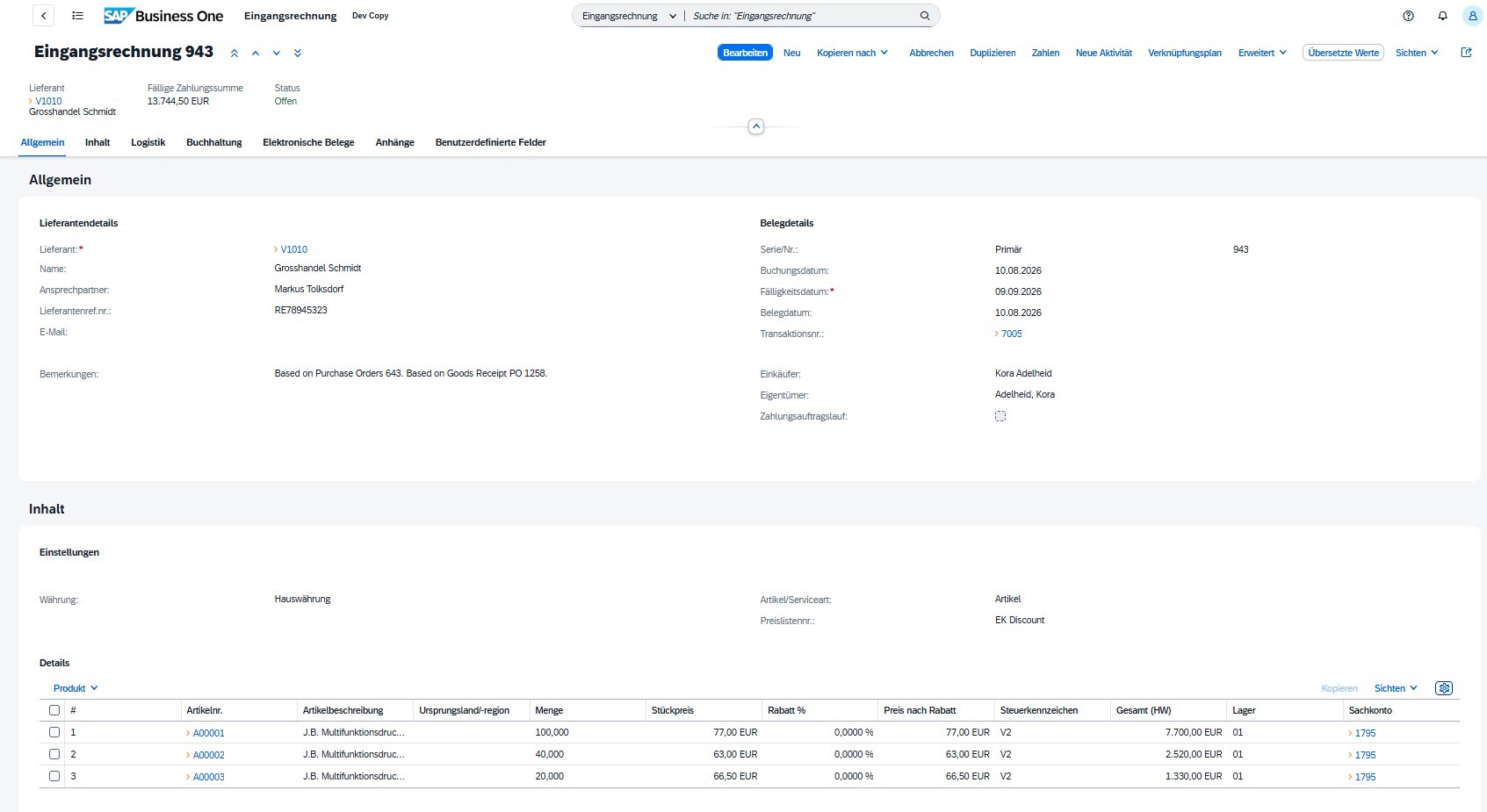
Fig.: Incoming invoice – completed form before posting
The most important fields at a glance
Booking period closed?
If SAP Business One reports an error during booking, it is often due to the Booking period. Under Administration → Setup → Booking Periods, check whether the desired date falls within an active period.
Booking logic and general ledger account determination
When an incoming invoice is posted, SAP Business One automatically creates a Journal entry. The accounts are determined via the general ledger account determination. This central configuration table can be found under Administration → Definition → Financial Accounting → General Ledger Account Determination. If necessary, a different general ledger account can be manually entered for each item.
At Stock items Simultaneously, the inventory is increased and the inventory value is updated. For services, there is no inventory impact; the entry is made directly to the expense account.
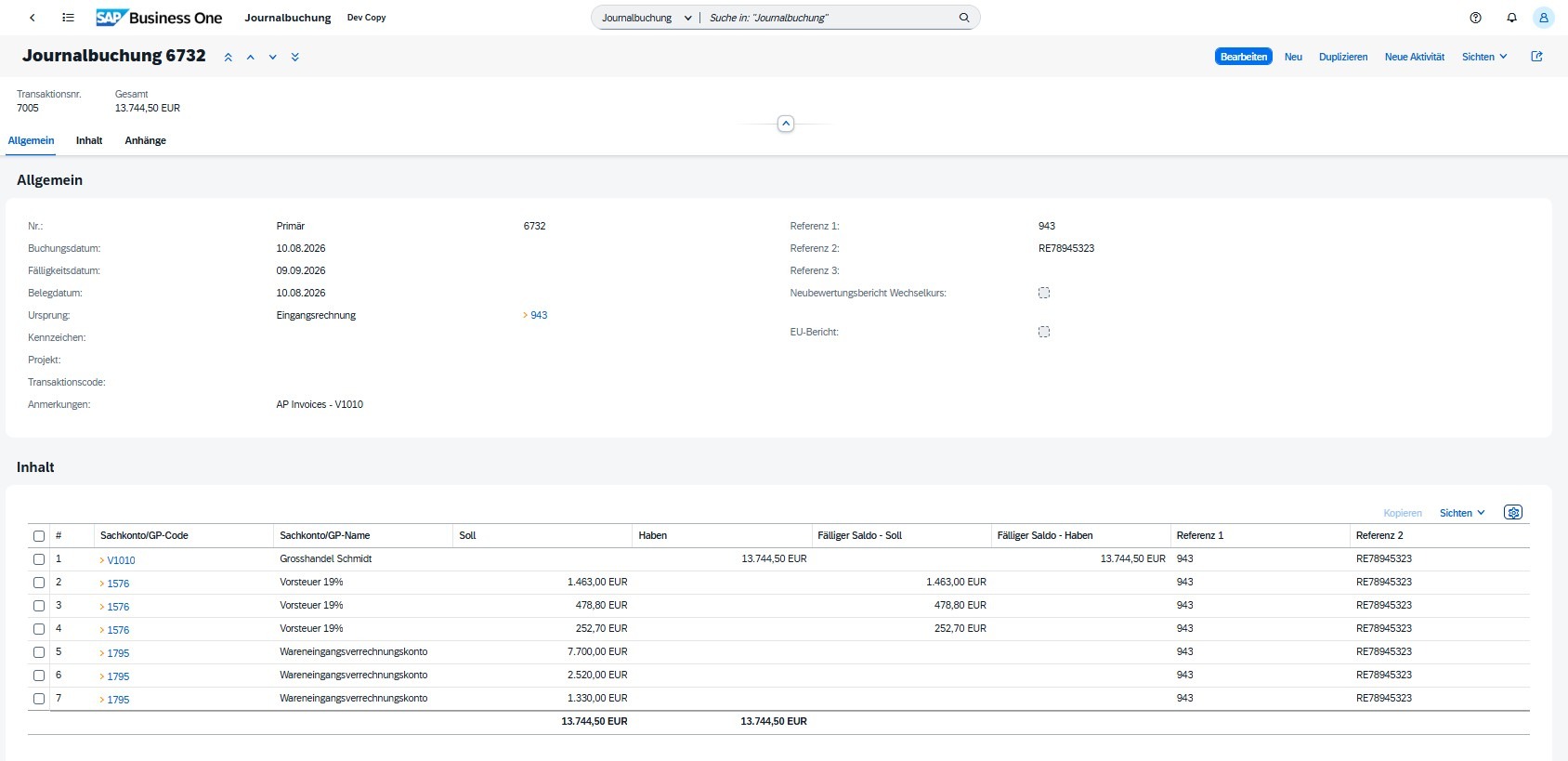
Fig.: Automatically generated journal entry
Can we optimize the incoming invoice process?
Whether it's setup, general ledger account determination, automatic invoice recognition or individual adjustments – we accompany the implementation from start to finish.
Request a free initial consultationDerive incoming invoice from order or goods receipt
In practice, it is advisable to process incoming invoices from a single source whenever possible. Preliminary document to derive. This reduces the data entry effort, prevents typos and enables a seamless three-way reconciliation: order → goods receipt → invoice.
Bundle collective invoices
SAP Business One allows you to, multiple open orders or open goods receipts from one supplier in a single incoming invoice to summarize. This is particularly useful for suppliers with monthly consolidated invoices.
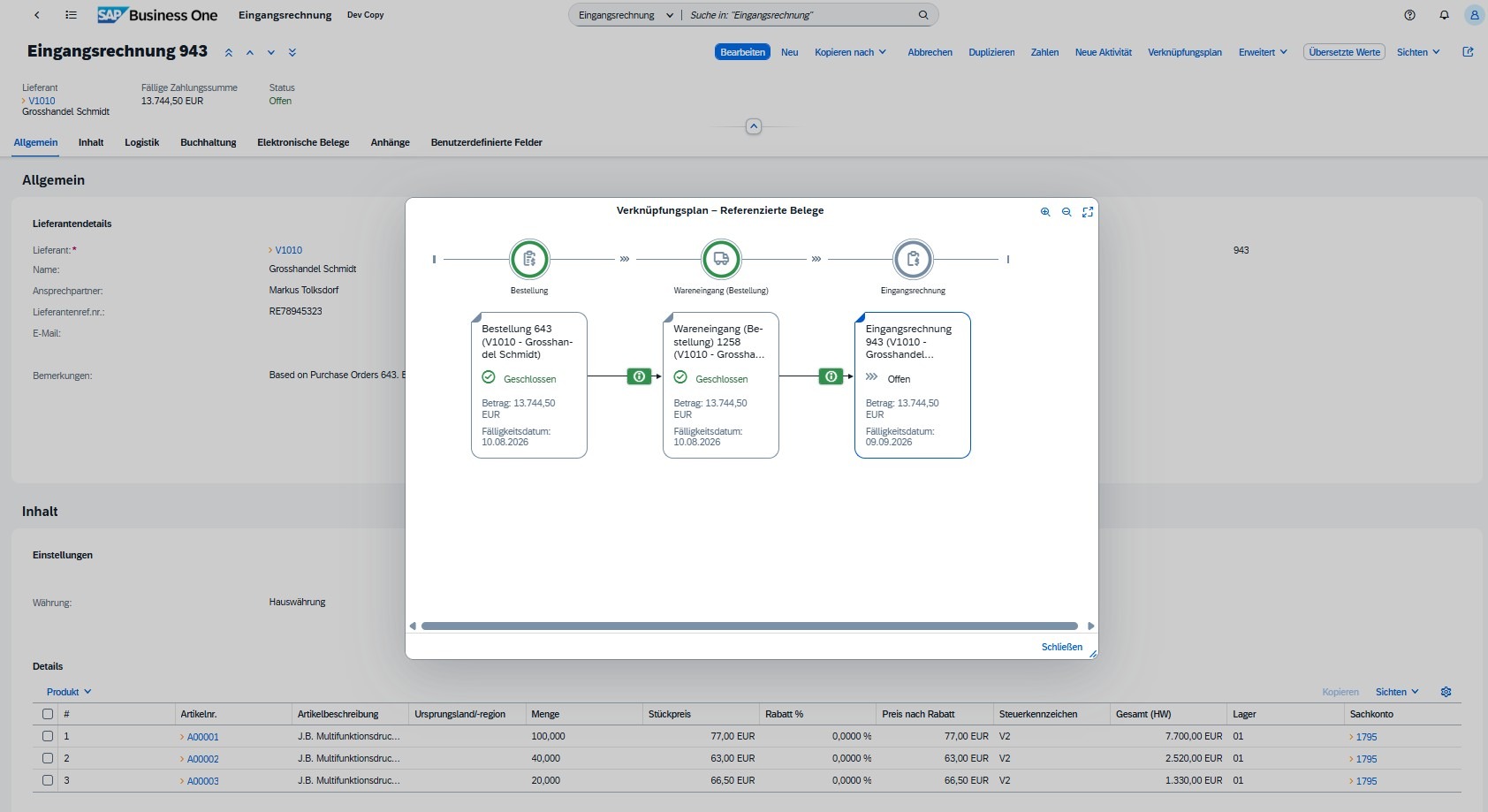
Fig.: Pre-document assistant (Order → Goods receipt → Incoming invoice)
Cancellation and incoming credit
Incoming invoices that have already been posted can no longer be directly edited in SAP Business One. Depending on the correction, an invoice can either completely cancelled or via a Incoming credit note fully or partially corrected become.
Cancellation of an incoming invoice
When an invoice is cancelled, the entire incoming invoice is reversed. SAP Business One automatically generates the corresponding offsetting entry, while the original document is retained for traceability purposes.
Incoming credit
An incoming credit note is used when an incoming invoice fully or partially corrected The original incoming invoice can be used as the basis document. Individual items or quantities can be adjusted as needed.
E-invoicing and automatic invoice recognition
Since January 1, 2025, B2B companies in Germany have been required to, Receiving electronic invoices SAP Business One natively supports the common XRechnung and ZUGFeRD formats. The structured data is transferred directly to the incoming invoice screen without requiring manual entry.
The cloud version also includes a AI-powered document recognition Available. PDFs are uploaded, and then the AI automatically extracts the header and position data. The original PDF and the recognized fields are displayed side by side. Price discrepancies from the order are highlighted directly.
Open orders for the identified supplier are automatically suggested for referencing. Also Cost centers from past invoices They can be adopted with a single click.
Process e-invoices directly in SAP Business One
Learn how to receive, process, and integrate XRechnungen and ZUGFeRD files into a seamless digital invoicing process.
More about e-invoicingApproval workflow
If an authorization process for incoming invoices is configured, this both in manual recording and in automatic recognition triggered.

Practical tips
Enable duplicate checking
In the system settings, check for duplicate supplier references Activate. This prevents accidental double payments.
Always work with preliminary documents.
If an order or goods receipt exists, always derive the incoming invoice from it. This ensures that the Seamless three-way matching.
Original documents attached
Save the PDF directly in the attachments tab. This makes things easier. Audits by tax advisors or during tax audits significant.
Complete periods on time
Post all outstanding invoices before the end of the month. Subsequent corrections in closed periods are costly.
Frequently asked questions about incoming invoices in SAP Business One
Can I edit an incoming invoice that has already been processed?
No. Incoming invoices that have already been processed cannot be changed directly. There are two ways to make corrections: 1. One cancellation reverses the entire invoice – SAP Business One automatically generates the corresponding offsetting entry. 2. One Incoming credit can be used to correct an invoice completely or partially.
What is the difference between the booking date and the receipt date?
The Date of receipt This corresponds to the date on the supplier's invoice. Booking date This determines the accounting period in which the booking falls. These two periods can differ, for example, in the case of invoices arriving late.
How do I book an invoice in a foreign currency?
In the header area, the currency can be displayed on a Foreign currency Change the currency. SAP Business One automatically converts the amount based on the stored exchange rate. Exchange rate differences during payment are automatically posted as exchange rate differences.
Can I split an incoming invoice across multiple cost centers?
Yes. At the position level, each row can have one. own cost center to be assigned. For a proportional distribution of a single item across several cost centers, manual allocation rules be used.
Can I set up incoming invoices in SAP Business One?
Whether it's initial setup, general ledger account determination, automatic invoice recognition or optimization of the existing purchasing process – we accompany the implementation from start to finish.
Request a free initial consultation