 Get in touch
SAP Business One Project Management
The most important points in brief
- Since version 9.2, the project management module has been an integral part of SAP Business One – at no extra cost for Professional licenses.
- The module can be used on-premise and in the cloud with identical functionality.
- Internal and external projects can be created independently or as a multi-level hierarchy with sub-projects.
- Five standard project phases are included and can be supplemented with your own templates.
- Resource planning and time tracking are done directly in the ERP system – for employees, machines and external service providers.
- Three integrated report types are available: phase analysis, open issues, and resource utilization.
- For many SMEs, this module can replace MS Project – its strength lies in ERP integration, not in Gantt views.
- Seven practical tips facilitate a professional start; add-ons cover advanced requirements.
Users who want to manage projects in SAP Business One no longer need external software. Since version 9.2, the project management module has been an integral part of the system. fully integrated into accounting, purchasing, resource planning and reporting.
This allows projects to be managed from initial planning to completion. Costs are directly linked to receipts, and progress can be evaluated in real time. This guide explains the relevant functions in detail – from activation and project hierarchy to concrete practical tips.
What is the project management module in SAP Business One?
Since version 9.2, SAP Business One includes a native project management module. It is fully integrated into the ERP system and requires no external software or additional interfaces. Projects can be managed... From initial planning to completion, manage, monitor, and link to documentation, costs, and resources..
Many medium-sized companies still manage projects using Excel spreadsheets, email, or separate tools like MS Project. Because these solutions are decoupled from the ERP system, duplication of effort, outdated data, and a lack of transparency regarding budgets and progress result.
The project management module closes this gap and is included in the standard delivery at no additional cost. A prerequisite is... Professional licenseUsers with this license can actively create and edit projects. Users with a Limited license have read access but cannot create or maintain projects themselves.
The module is available both on-premises and in the cloud with identical functionality. The difference lies in the access: In the cloud, this is via a browser client instead of a desktop client.
Fully integrated
Projects are directly linked to receipts, bookings, activities, and resources. Separate data silos are eliminated.
Internal and external
Customer projects and internal initiatives can be mapped in the same system and differentiated according to their purpose.
Real-time reports
Costs, phase status and open issues can be evaluated at any time based on current data.
Cloud and On-Premise
The range of functions is identical in both operating variants and is therefore flexible in its use.
Can SAP Business One replace MS Project?
For many SMEs, the integrated module is sufficient – especially if Costs, receipts, resources and project progress The focus should be on the core elements. For complex Gantt charts, critical paths, and detailed schedule dependencies, a specialized project management solution may still be useful.

Test the project management module in SAP Business One now!
Test how projects, costs, phases and resources can be planned and evaluated directly in the ERP system.
Try the demo for freeWhy manage project management directly in SAP Business One?
According to the Project Management Institute, inefficient project management results in an average of almost 12 percent of the company's resources lost. The integrated module in SAP Business One addresses precisely this weakness – without additional software costs.
12 %
Resource loss due to inefficient project management, according to PMI.
77.000+
Companies worldwide use SAP Business One.
5
Standard phases that can be adapted to your own requirements.
3
Integrated report types for phases, open issues, and resources.
The four key advantages
Setup: Activating the module – step by step
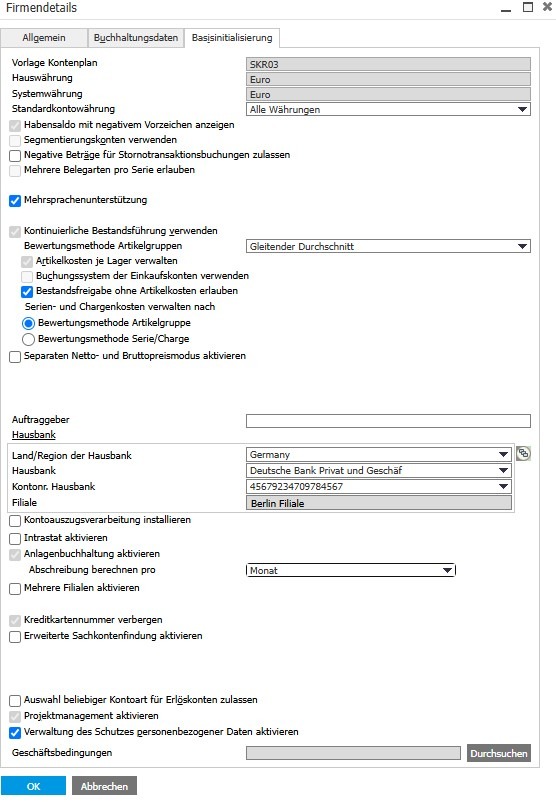
The project management module is not activated by default. Activation takes less than two minutes.
Set up phase templates in advance
Before starting your first project, define your own phase templates and activity types under Administration → Setup → Project Management. The five standard phases can be customized. add or replace.
Understanding project hierarchy and project types
SAP Business One distinguishes between two project sources and two hierarchy types. Choosing the right structure from the start will save you a lot of rework later.
Independent and complex projects
A independent project It stands alone and is not linked to other projects. It is suitable for manageable, clearly defined projects.
At a complex project A main project can be linked to any number of sub-projects. Costs and status are automatically aggregated upwards. In practice, a maximum of two to three hierarchy levels is recommended for a clear overview.
Project status
Started
The project is active and currently being developed.
Stopped
The process is temporarily paused and can be resumed later.
Stopped
The project was cancelled; the corresponding date is documented.
Finished
The project is complete and will be given a completion date.
The 5 standard project phases in SAP Business One
Each project is in Steps structured. SAP Business One provides five standard levels, which can be customized or supplemented with your own levels.
What does a project phase include?
- Tasks with responsible parties and deadlines
- Planned and actual costs
- Dependencies on predecessor and successor phases
- Related incoming and outgoing documents
- Percentage of completeness
- Open issues with status and responsible party
- Attachments, activities and internal documentation
utilize phase dependencies
Dependencies allow you to specify, for example, that Phase 3 is only considered started when Phase 2 has reached a certain level of completeness.. This noticeably improves the quality of the planning.
Key functions in the project window
With the expansion Project App Key elements can be controlled more effectively.
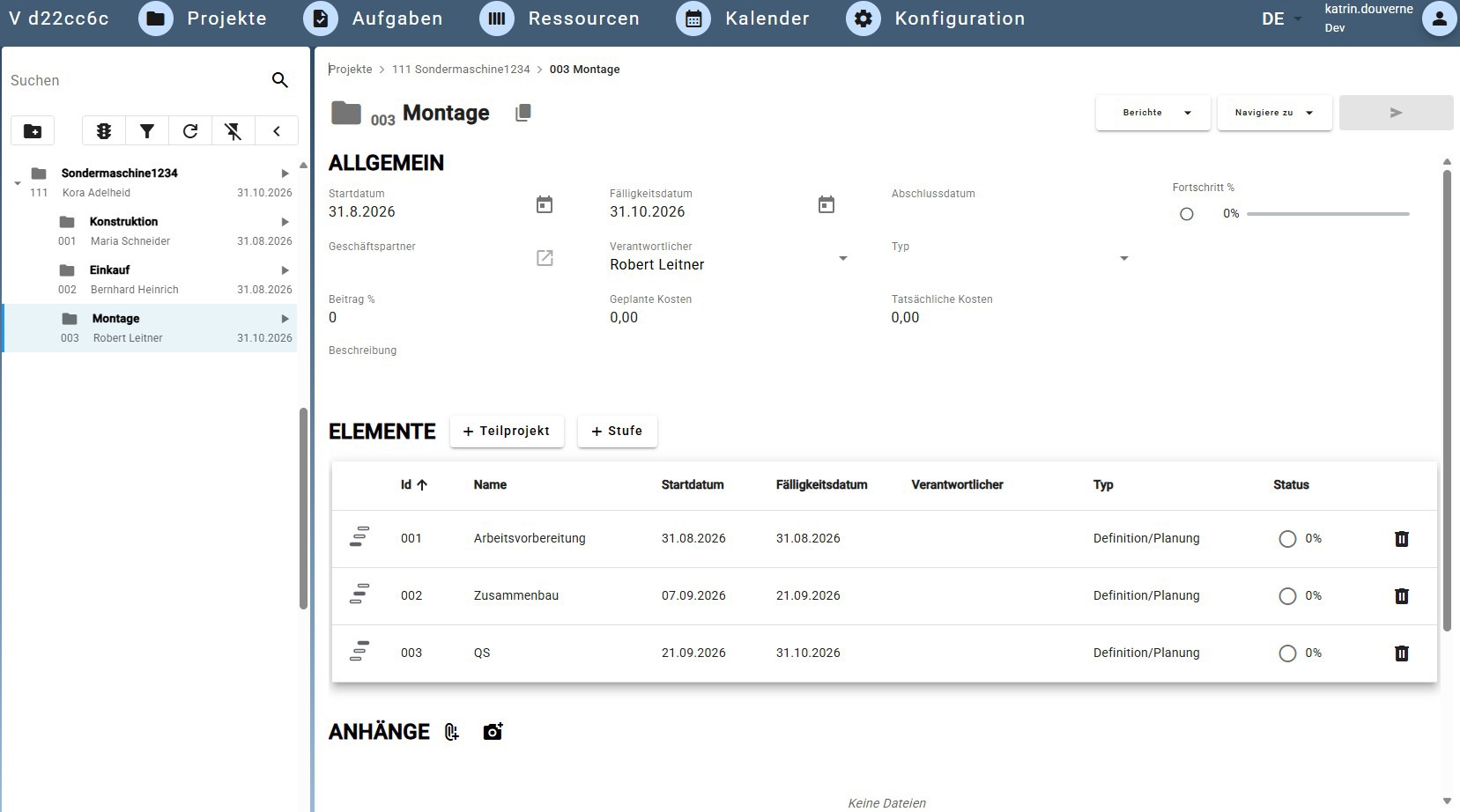
Key areas in the project app
Project Overview & Structure
Shows the general project data such as start and due dates, business partners, responsible parties, progress, and status. Under elements The project will be hierarchically structured into Subprojects and stages structured.
Stages & operational processing
In every Level Dates, responsible parties, type, dependencies, and planned costs are maintained. Additionally, Tasks, purchase and sales documents, production orders and attachments directly assigned to the respective level.
Status & Document Assignment
About the Document assignment Document items are assigned to the appropriate project stages. These include, for example... Orders, goods receipts, incoming invoices, customer orders, deliveries and outgoing invoices. The Status report It shows the entire project structure with deadlines, responsible parties and processing status.
Planning & Controlling
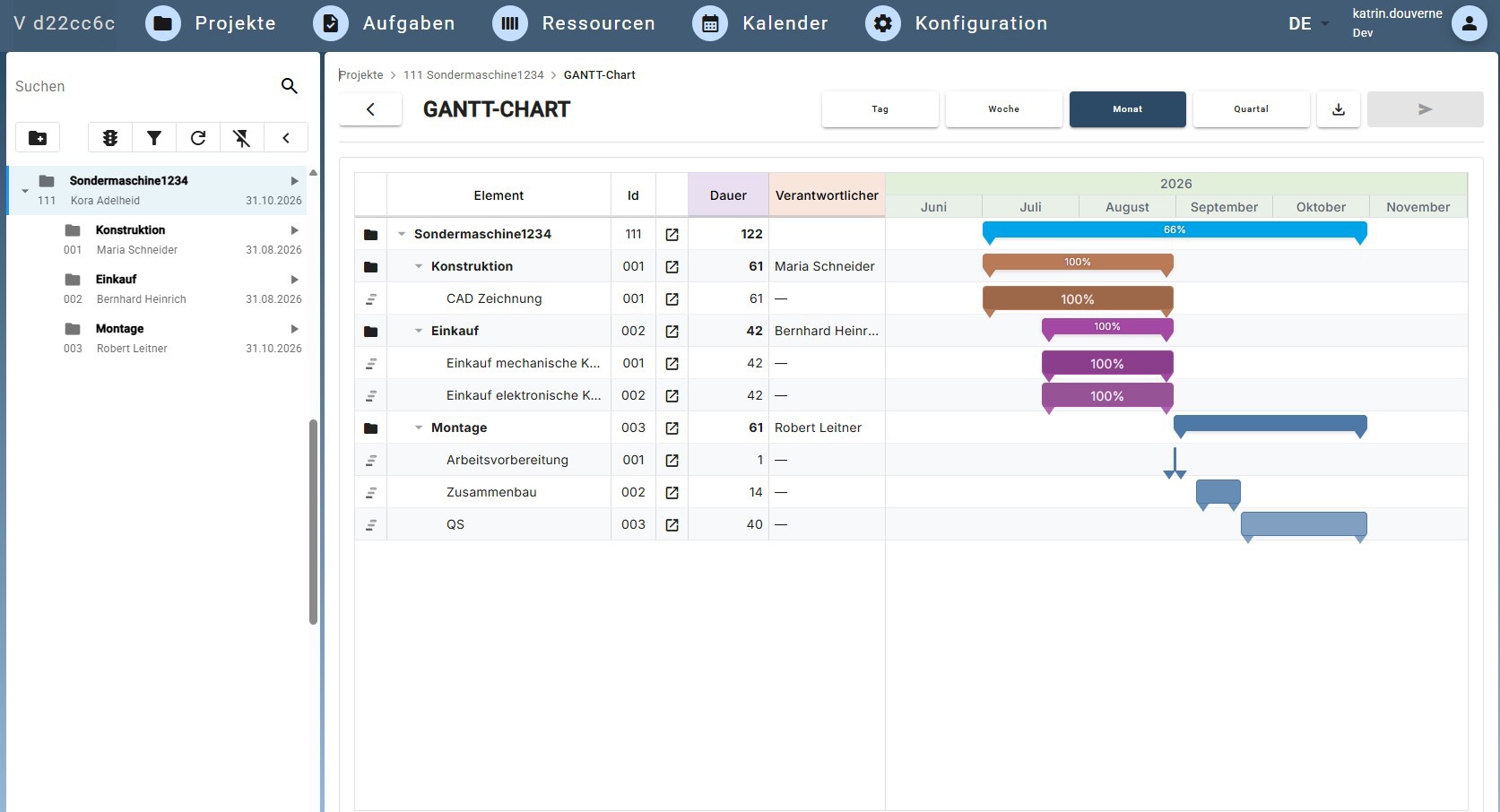
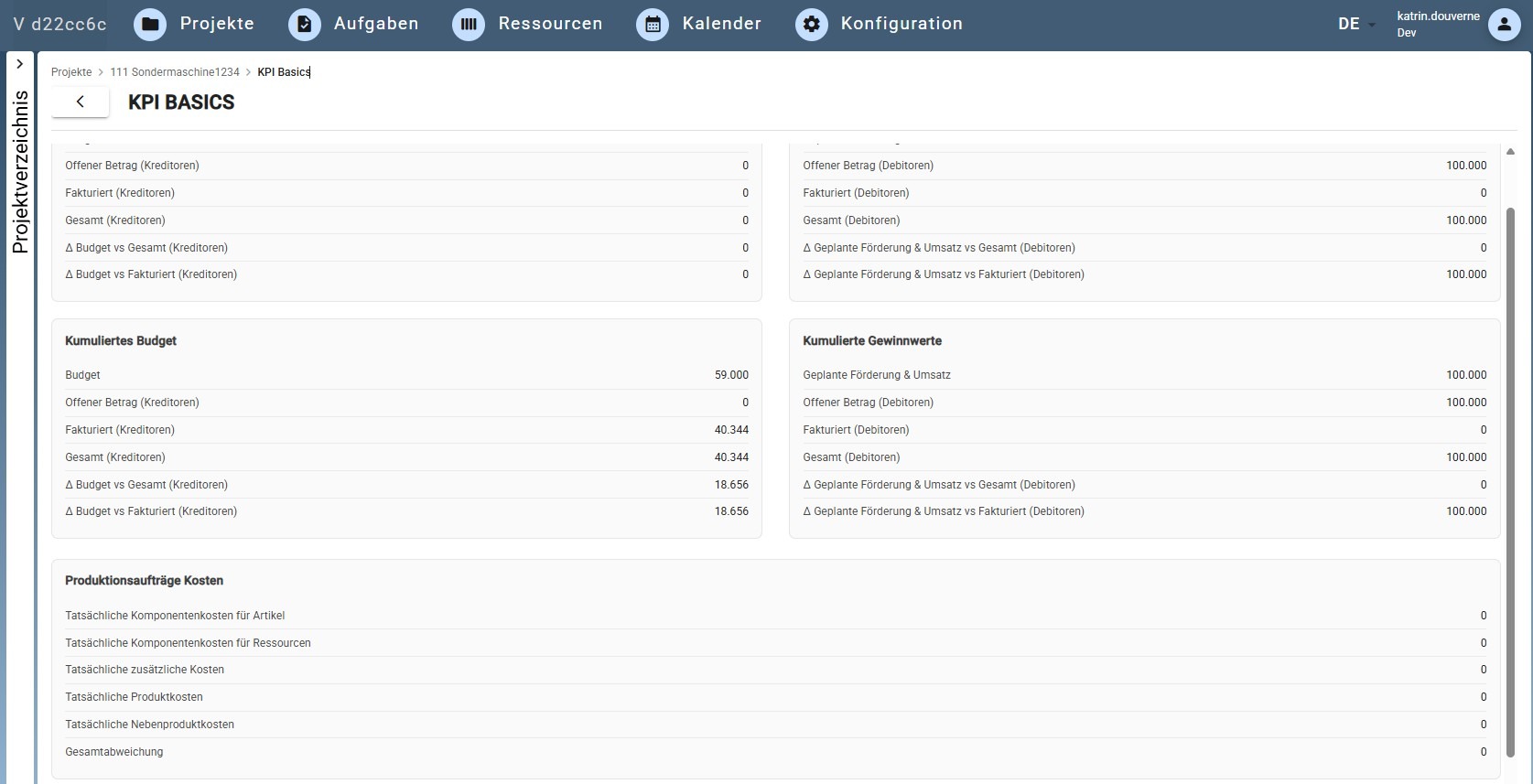
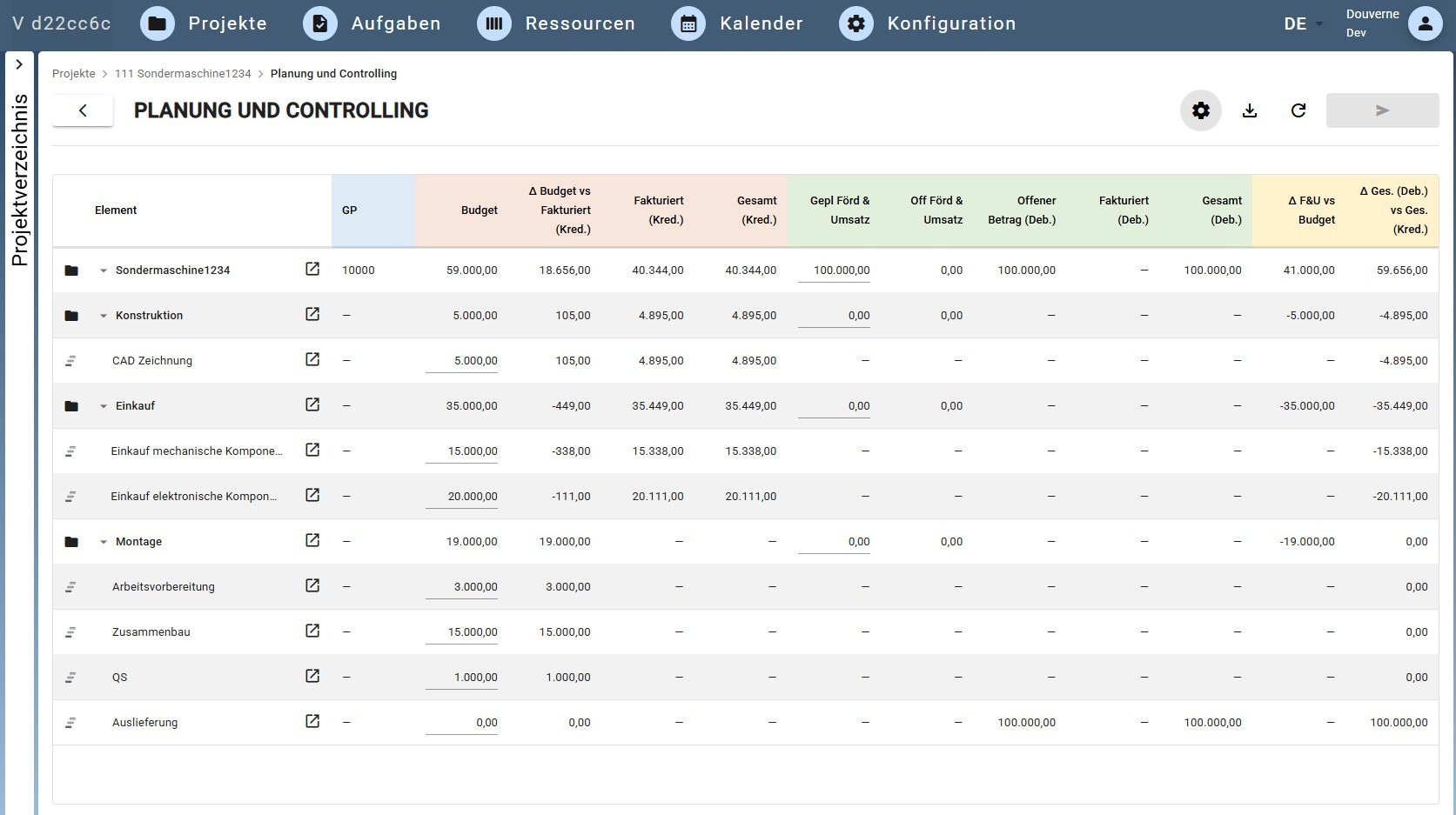
Various evaluations are available for project management: KPI Basics summarizes budget, cost and revenue figures, which Gantt chart visualizes deadlines and dependencies and Planning and controlling It compares the budget, invoiced values, and variances for each project, sub-project, and stage. It also includes other documents such as... Test certificates, technical drawings or acceptance protocols They can be stored centrally in the project as attachments.
Project management in SAP Business One: Creating structures
We handle your setup, customization, and training. From meticulous project planning to efficient implementation in daily operations, we ensure that your processes integrate seamlessly with SAP.
Request a free initial consultationCombining finance projects and project management
SAP Business One distinguishes between financial projects under Administration → Finance and projects in the Project Management module. Initially, they are independent, but can be manually linked. This linking allows data to flow. Bookings are automatically assigned to the correct project – a crucial step for seamless project cost tracking in controlling. Extended UI functions are available as needed via the certified B1 Usability Package.
Settings under Administration → Setup → Project Management
Phases: Define your own project phases
Activities: Define activity types for resource planning
Resource types: Employees, machines or external service providers
Reports and evaluations in project management
The Project App It offers several integrated reports and analyses that allow project status, deadlines, costs, and revenues to be monitored directly within the system. These can Exported to Excel and processed further there if required.
Resource planning and time tracking
In SAP Business One, resources can be directly linked to projects and their phases – via so-called Work assignments. This enables integrated time tracking without the need for an additional tool.
Human resources
Employees are set up as resources and assigned to projects. Recorded hours are directly incorporated into cost analysis – this is equivalent to native time tracking.
Machinery and equipment
Physical resources are planned and their utilization is considered on a project-specific basis.
External service providers
External services are taken into account in the project costs via resources and supplier receipts.
Work assignments – how resources and projects are linked
Work orders are the operational unit through which resources are allocated to a project. They contain allocated resources with hours and quantities, the link to a project phase as well as the actual costs based on the booked services.

Resource report for capacity planning
The resource report shows which employees or machines are scheduled and to what extent. This allows for... Identify bottlenecks early and reallocate resources in a timely manner..
Extensions for special requirements
The standard functionality covers most requirements of medium-sized businesses. Certified SAP partner add-ons are available for specific extensions. Coresuite It adds mobile time tracking and enhanced project reports. B1 Usability Package It improves usability and offers additional UI functions. Separate add-ons, built on top of the project management module, are available for construction billing, IT service management, and other industry-specific requirements.
Best Practices: 7 Tips for Effective Project Management in SAP Business One
For which companies and industries is the module suitable?
The project management module is relevant for all project-oriented SAP Business One users who Regularly link projects to costs, resources, and supporting documentation..
IT and software
Manage implementation projects and maintenance contracts entirely within the ERP system and bill recorded hours directly.
Construction and crafts
Structuring construction projects with subcontractors, material cost planning and performance records for clients.
Mechanical engineering
Connect customer-specific projects and commissioning directly with production in SAP Business One.
Consulting firms and agencies
Implement project-based billing and customer project tracking without Excel workarounds.
Trade and logistics
Handle rollout projects and warehouse restructurings internally in a structured manner.
Service and support
Structure recurring service projects and maintenance orders as a project hierarchy.
This module is particularly suitable if…
- Projects are regularly linked to costs and resources
- Several projects are to run in parallel and be compared.
- Project costs must be clearly separated from day-to-day business.
- Customers or suppliers are directly involved in projects
- SAP Business One with Professional licenses is in use
Need project management set up in SAP Business One?
Our team supports setup, customization and training – from the initial project structure to use in daily business.
Request a free initial consultation