
 Get in touch
SAP Business One: Sending payment reminders via email
The most important points in brief
- Dunning levels and conditions control deadlines, fees, minimum balances, and letter layouts.
- The recipient address is maintained in the business partner database or via a contact person.
- Email subject and body text can be preconfigured.
- The dunning assistant guides the user from customer selection to the final email dispatch.
- Email is suitable for early reminders; for further escalation, verifiable postal delivery becomes advisable.
- Dunning history reports and sent email reports support follow-up.
In SAP Business One, this is Dunning process implemented in a user-friendly way than in SAP ECC or S/4HANA. Neither ABAP code nor transactions like F150 or a technical customizing project are required. Instead, a wizard guides you through the entire process.
One SAP reminder via email It can be sent directly from the system as soon as the recipient address, dunning terms, and dunning texts are correctly entered. This guide describes the complete process.
Dunning process in SAP Business One
SAP Business One brings a Complete dunning process in the standard The central tool is the dunning assistant, located under Sales → Dunning → Dunning Run. It checks outstanding customer invoices and, based on the defined dunning conditions, determines which customers will be dunned at which stage.
The module is exclusively for Customers and therefore for receivables management This includes, among other things, outstanding outgoing invoices including installments, credit notes, non-invoice-based incoming payments, and certain manual journal entries.
1. Define dunning levels
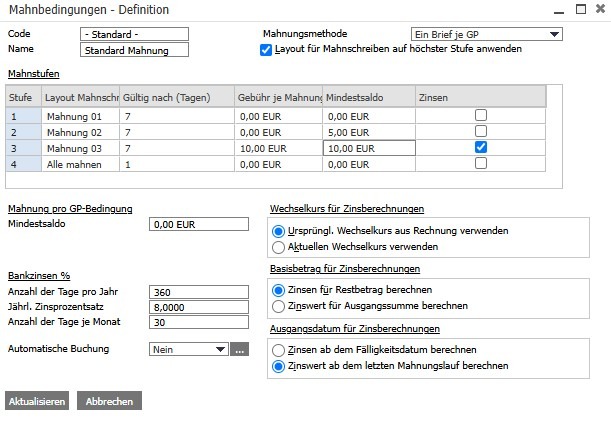
Set days, fees, minimum balance and letter layout for each level – under Administration → Definitions.
2. Assign a dunning condition
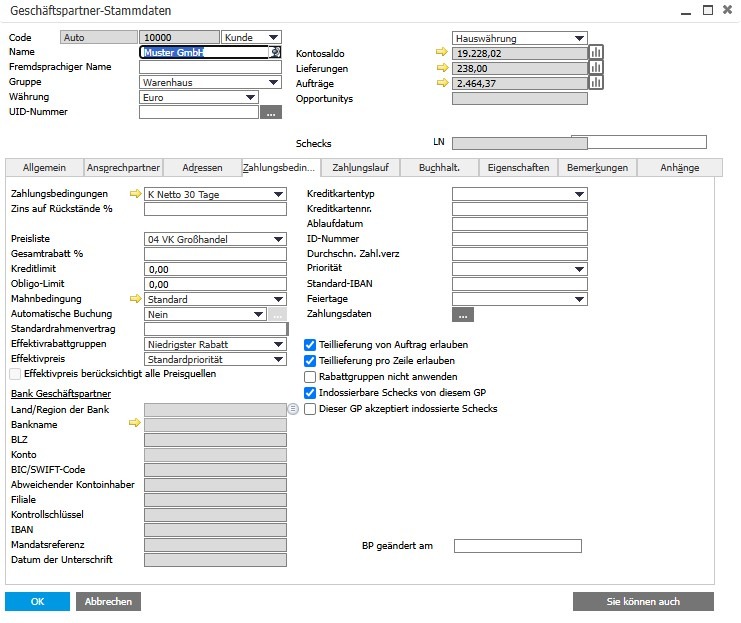
Assign each customer a dunning condition and a suitable email address – including the email address itself.
Start 3rd dunning run
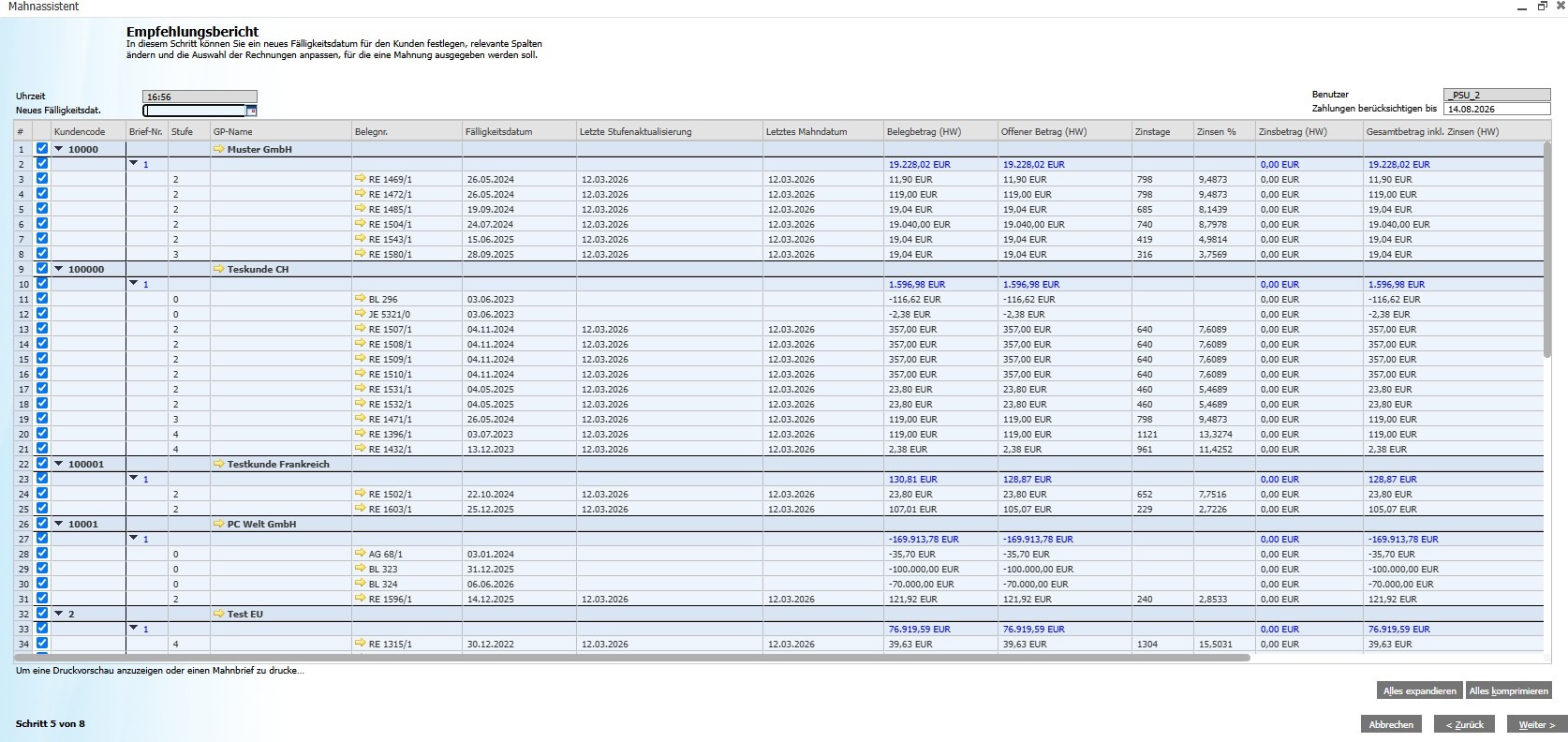
Check the list of suggestions and send reminders via email – done.
4. Evaluate the history of reminders
Track sent reminders, stages and affected invoices.
Set up dunning levels and dunning conditions
Before the first dunning run, Dunning levels and dunning conditions set up once become.
Define dunning levels
Menu path: Administration → Definitions → Business Partners → Dunning Levels. SAP Business One supports up to ten dunning levels.
Define payment terms and assign them to customers
Under Administration → Definitions → Business Partners → Dunning Conditions, the following is defined:, which levels apply in which order. Furthermore, it can be determined whether a letter is sent for each invoice or a single letter is sent for each dunning level, and whether fees and interest are automatically booked.
The dunning condition is assigned in the business partner master data under payment terms. Customers without a payment reminder condition will not be considered.. For special cases, the "block reminder" option can be set.
Payment reminder terms apply only to customers - supplier reminders require an additional app.
Dunning terms can only be assigned to customers in SAP Business One. suppliers You will not receive any reminders via this module. ButApps like the supplier reminder app from conesprit can also help with this. Reminder from suppliers take place.
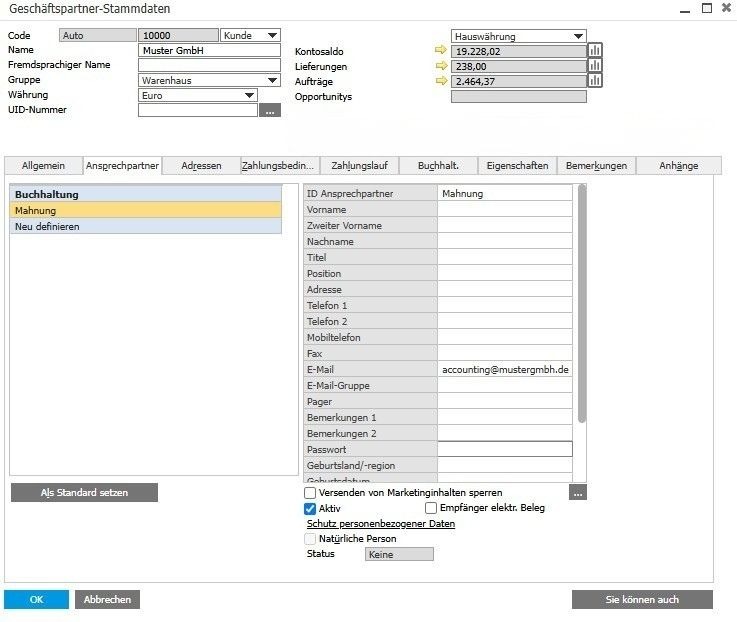
Enter email address in the business partner database.
In order for a reminder to be sent by email, a valid recipient address in the business partner database It should be well-maintained. There are two combinable ways to achieve this.
Standard address in master record
- The email field on the main tab serves as the default recipient.
- This address is used for outgoing emails when no specific contact person applies.
Targeted contact person
- In the "Contact Person" tab, you can create your own accounting contact.
- An email group can be used to classify contacts for sending dunning notices.
- Several responsible persons can be managed accordingly.
Data quality as a basic requirement
Customers without an up-to-date email address will not receive payment reminders and must be contacted manually. Therefore, email addresses should be entered automatically when creating new customer accounts. become.
Configure text snippets for sending emails
Email subject and body can be customized under Administration → Definition → General → Predefined Texts Pre-configure centrally. The standard texts are pre-filled for sending and do not need to be re-entered for each run.
Design letter layout for each dunning level
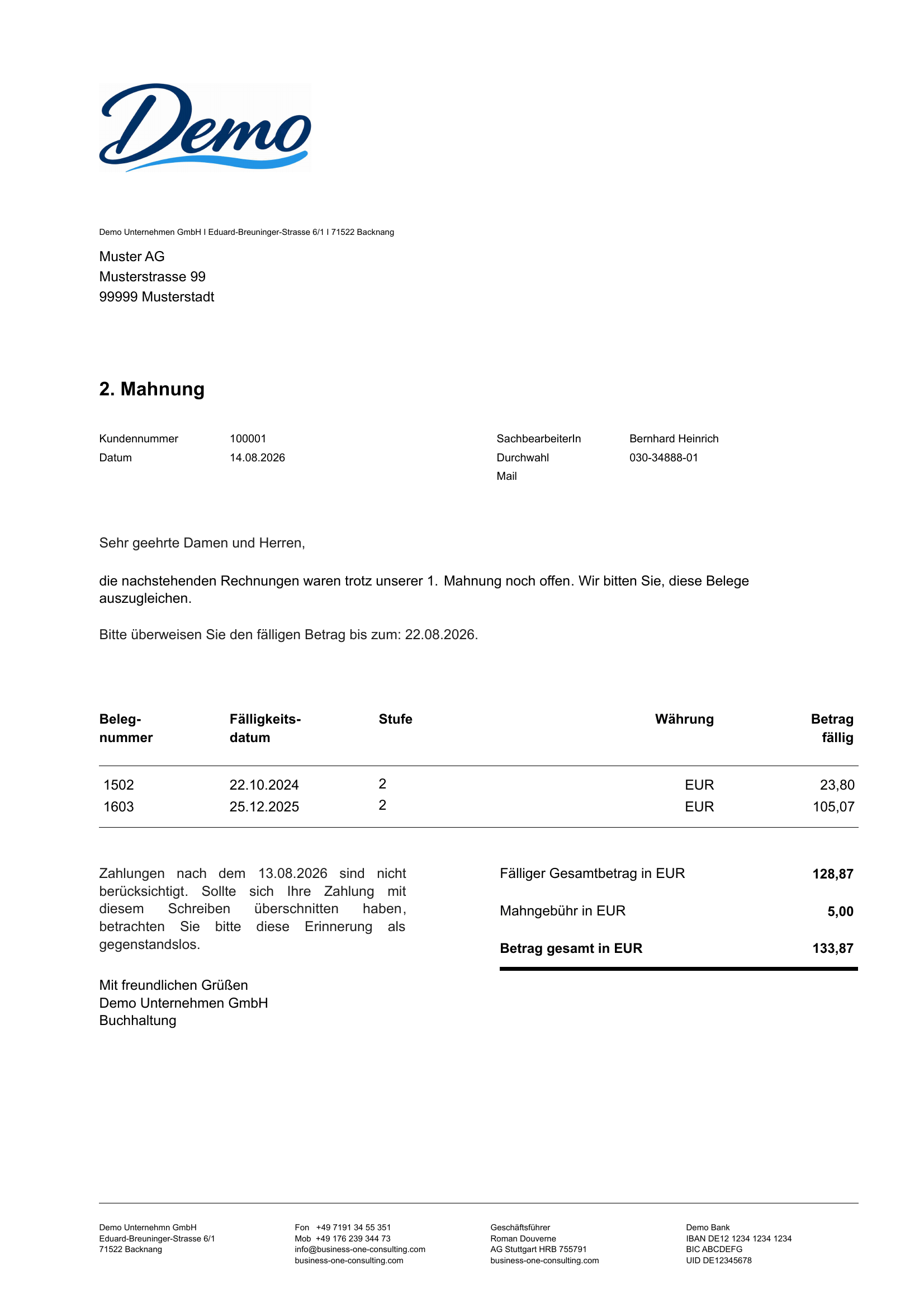
The actual dunning letter with the outstanding amount, invoice list and instructions will be sent as PDF attachment sent out. The layout is created with the report and layout designer or Crystal Reports and assigned to the respective dunning level.
Level 1 can be a friendly reminder about payment, while a later level addresses more explicit consequences. Separate layouts reflect the increasing seriousness better than a uniform text.
Email body plus PDF attachment
The email body contains the short standard text from the print settings. The formal dunning letter with all the details will be... automatically attached as a PDF.
How to optimize dunning processes in SAP Business One?
From dunning levels and fees to final shipment, we optimize your workflow for efficient receivables management.
Request a free initial consultationPerform the dunning run in SAP Business One
The dunning assistant under Sales → Dunning → Dunning Run guides you through the process step by step.
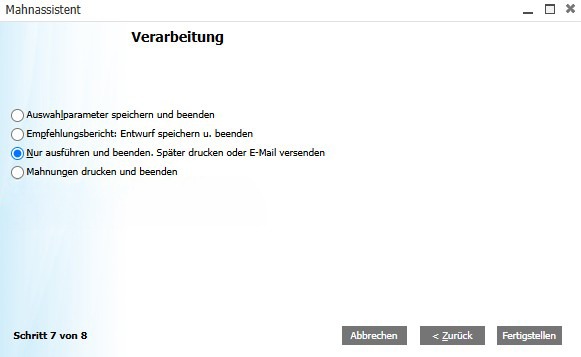
Always use the test run first.
Check the suggestion list before the production run: Do the customer details, dunning levels, amounts, and email addresses match? This is particularly important after changes to master data or conditions.
Which reminder levels should be sent via email?
A reminder can generally informal and therefore also possible via email This will occur. However, as the situation escalates, proof of access becomes more important.
The appropriate shipping method can be selected in the print dialog for each dunning run. The specific strategy should be tailored to the customer relationship, the amount owed, and the risk profile, and reviewed if there are any legal doubts.
History of reminders and follow-up
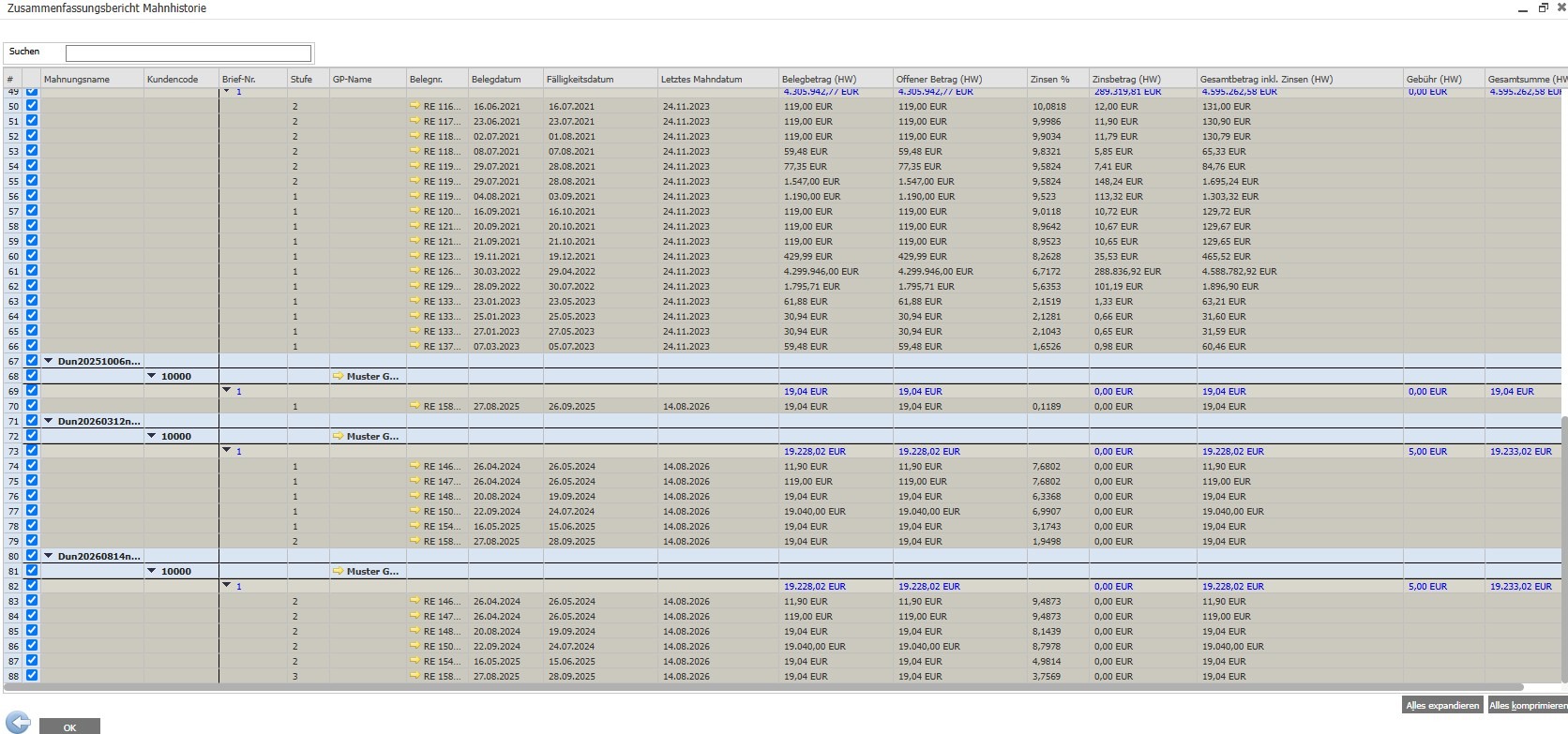
After a run is completed, SAP Business One updates the dunning date and dunning level. Two reports support this. Follow-up of the dunning process.
Report on the history of warnings
Under Business Partners → Business Partner Reports → Dunning History Report, dunning notices are listed. Dunning level, dunning date and associated invoices The information is displayed. Filters by business partner, date, level, and invoice number facilitate the evaluation.
Report „Sent Emails“
The report documents documents sent from SAP Business One with Recipient address, date, time, user and subject. PDF attachments remain referenced if the attachments folder is correctly set up as a shared network path.
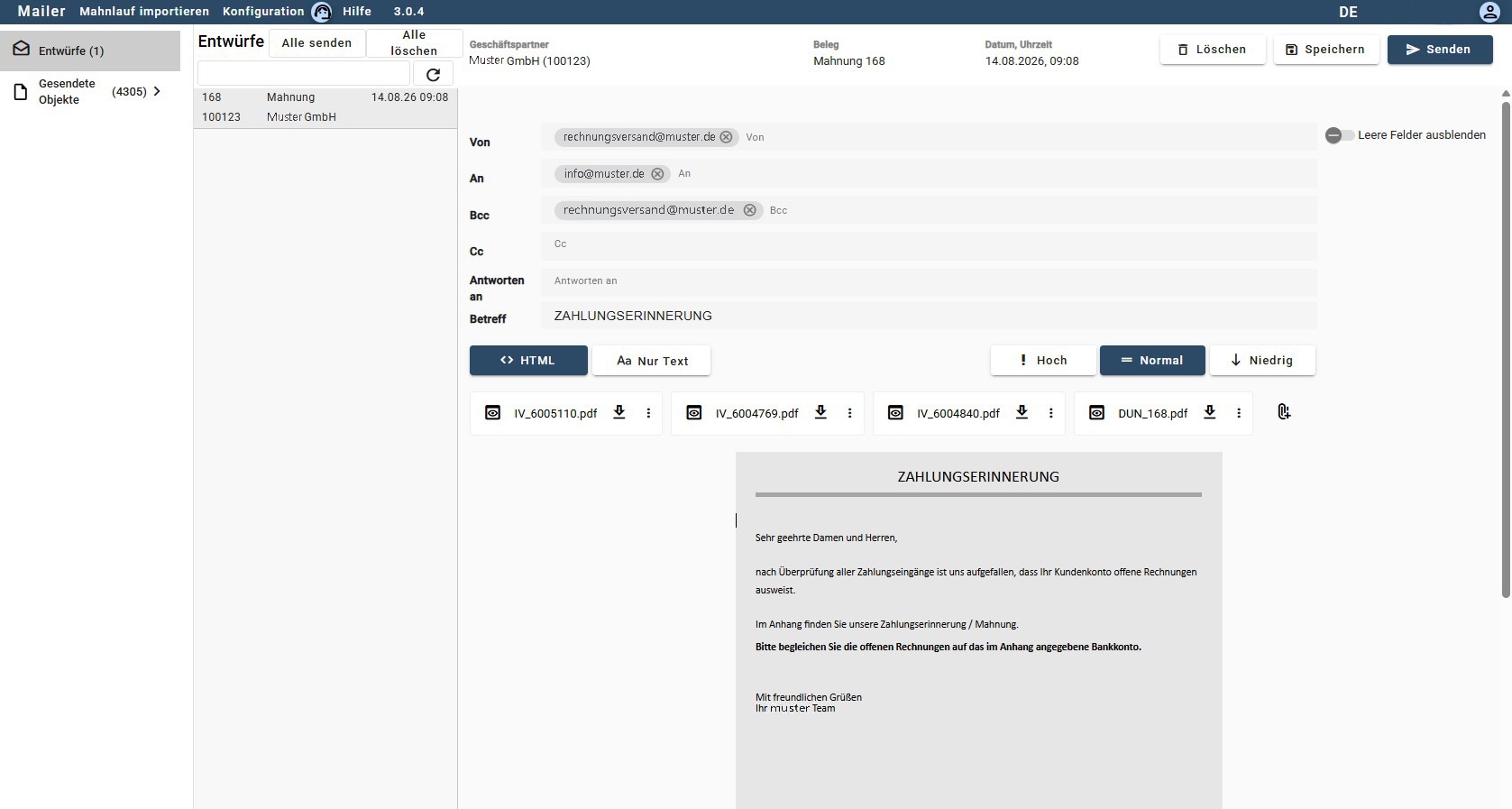
The reminder date prevents premature repetition.
After execution, SAP Business One sets the dunning date. This triggers the dunning conditions defined in the dunning process. Intervals until the next reminder taken into account.
Best Practices: 5 Practical Tips
1. Maintain clear payment terms
Correct payment terms and due dates are the basis for ensuring that outstanding invoices are dunned at the right time.
2. Maintain email addresses
Enter the address completely, ideally directly when creating the customer account.
3. Separate layouts for each level
A friendly reminder and a clear final warning require different tones.
4. Implement a payment reminder block
Temporarily block customers with installment agreements, complaints, or other special cases.
5. Establish a regular reminder schedule
A weekly or bi-weekly appointment and a clear responsibility ensure regularity. The dunning run must be manually initiated in SAP Business One..
Setting up dunning procedures in SAP Business One?
Test dunning and financial accounting in a free demo system.
Start free demo